 ★4DSC01201.ARW
Start a cull on your computer, finish it with your phone on the go.
Open a card, a folder or your NAS in the app on your Mac or PC, and pick, reject and rate without waiting for RAW files to load. When you leave the desk, pick up the same shoot on your phone or iPad. Your choices are saved to the XMP sidecars your editor already reads for RAW files.
The app is free for everyone. Your RAW files are never changed and never leave your machine.
★4DSC01201.ARW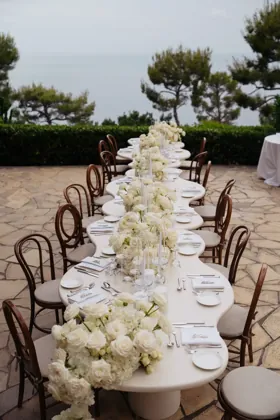 ★0DSC01202.ARW
 ★3DSC01203.ARW
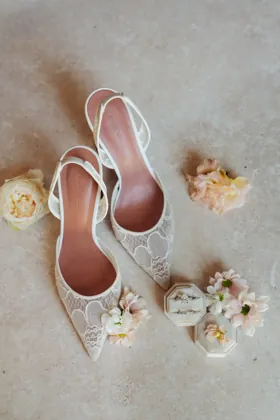 ★5DSC01204.ARW
 ★0DSC01205.ARW
 ★2DSC01206.ARW
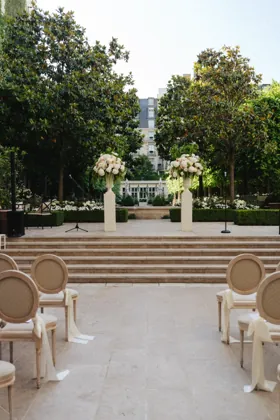 ★0DSC01207.ARW
 ★3DSC01208.ARW
 ★0DSC01209.ARW
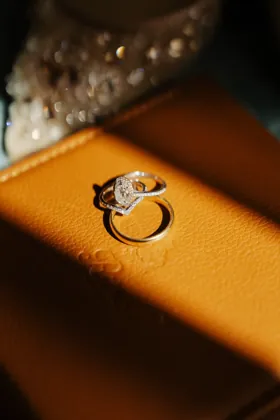 ★0DSC01210.ARW
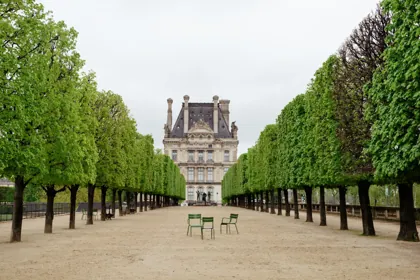 ★0DSC01211.ARW
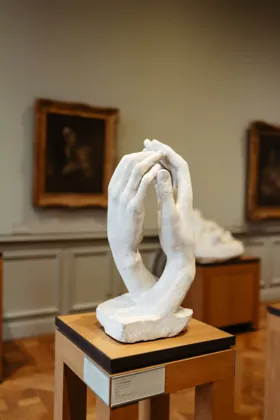 ★0DSC01212.ARW
640 total✓ 0✕ 0★ 0

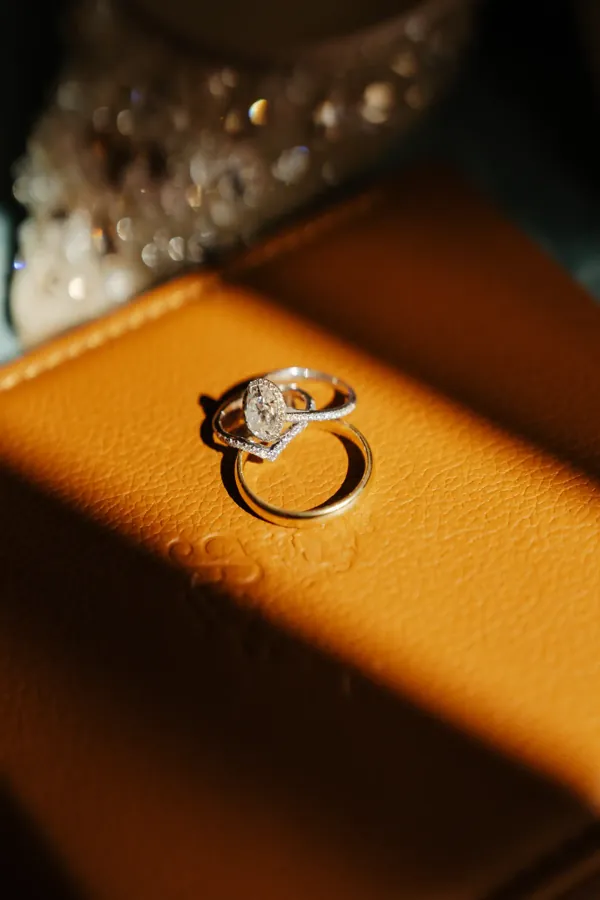
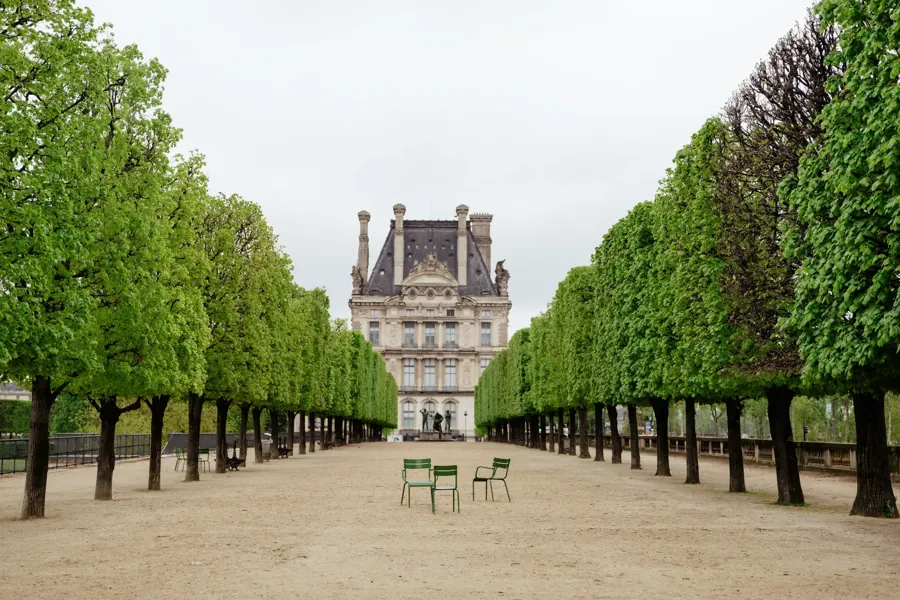
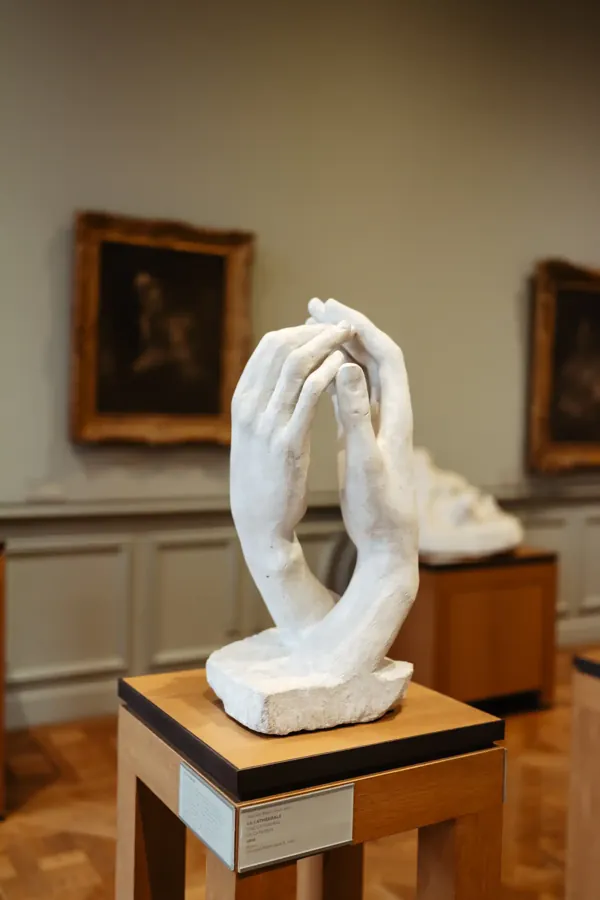 DSC01209.ARWDSC01210.ARWDSC01211.ARWDSC01212.ARW
How it works
- Open your photos. A card, a folder or your NAS, in the app on your Mac or PC. The files never move.
- Cull at the desk or on the go. Pick, reject and rate with the keyboard, or on your phone or iPad with the studio app running on your computer.
- Edit as usual. Your editor reads the same XMP sidecars, so your picks are already there.
Not an editor: your photos stay untouched
Another app on your photos is one more thing that could change them, or keep your picks to itself.
The app only reads your photos. It never changes, converts, moves or deletes them. Your stars, picks, rejects and colour labels go into the standard XMP sidecar, a small file next to each photo, and nothing else in the sidecar changes, so your keywords and edits stay.
Any editor that reads XMP sidecars sees your choices, so you go straight from culling to editing.
ARWDSC01207.ARWuntouched
XMPDSC01207.xmp
<xmp:Rating>4</xmp:Rating>
<xmp:Label>Pick</xmp:Label>
Your editorreads the sidecar
Extremely fast RAW loading, made for culling
Waiting for each RAW to load breaks your rhythm and makes a long cull longer.
The app doesn't develop your RAW files. It shows the full-size preview your camera already put inside each one, and loads the next photos before you get to them. The next frame is just there, whether the files are on a card, your computer or your NAS.
- ARW
- CR2
- CR3
- NEF
- NRW
- RAF
- RW2
- ORF
- PEF
- SRW
- DNG
- 3FR
- IIQ
- X3F
- RWL
- RAW
- MRW
- DCR
- ERF
- MEF
- MOS
- JPEG
Sony, Canon, Nikon, Fujifilm, Panasonic, Olympus, Pentax, Samsung, Leica, Hasselblad, Phase One, Sigma, Kodak and Minolta, plus TIFF and HEIC on iPhone and iPad. With the studio app, also TIFF, PNG, WebP, BMP and HEIC everywhere. Every format →

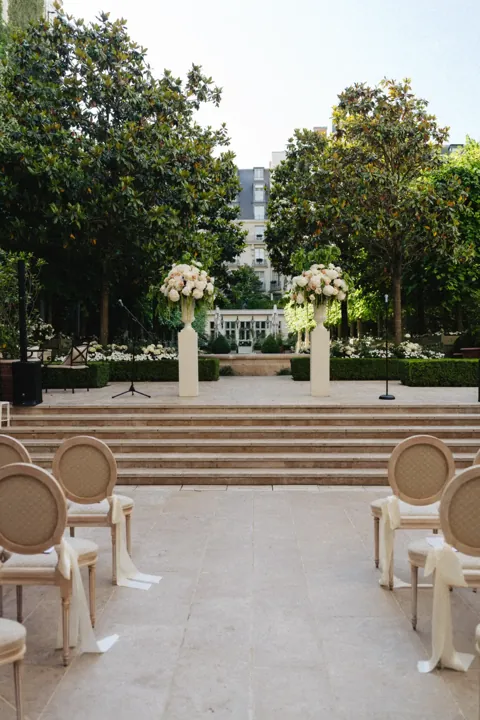

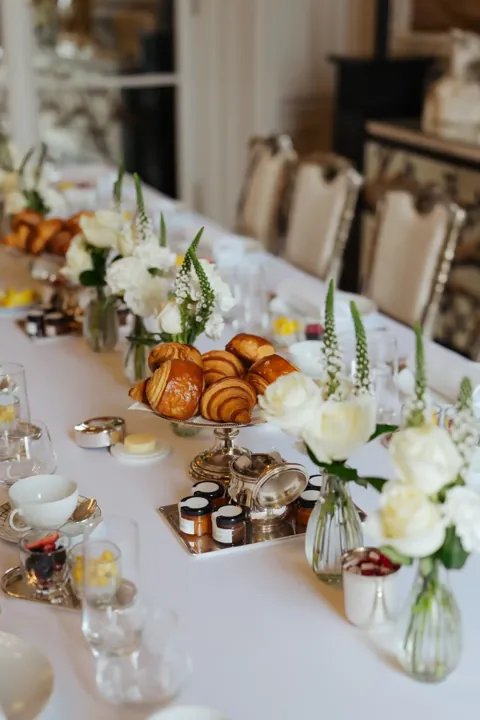

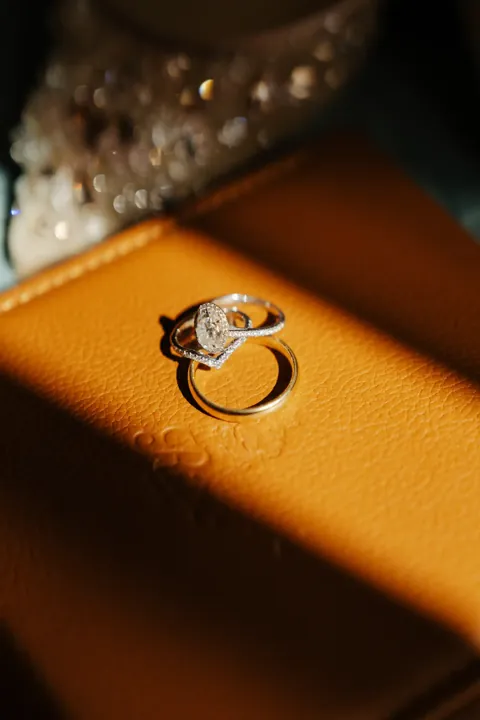
Video clips, with the camera's timecode
A wedding card holds clips as well as photos, and most culling apps skip them or send you to another player.
Clips sit in the grid with your photos and play right in the loupe, on your computer, phone or iPad. Rate, pick and label them like any photo; the choices go to the same XMP sidecars.
The app reads the timecode your camera wrote into the clip, so the info line shows the time of day each frame was shot, such as 14:32:12:06: the number you match against your audio recorder or a second camera. MOV, MP4, M4V, MTS, M2TS, AVI and MXF.

Back up each card twice, checked with checksums
A copy that looks finished can still be missing or damaged files, and you only find out after the card is formatted.
Copy one card to your working drive and your backup at the same time, from a single read of the card. Each copy is read back and its SHA-256 checksum compared with the card's, so both copies are checked before you format it. Leave a.sha256 file beside each photo if you like, to check it again years later with no app at all.
If the card is pulled out, plug it back in and the copy carries on. The app also warns you when both places are on the same drive, since one drive failing would lose both. How to copy cards safely →
Cull with one hand
Culling on a phone usually means two hands and small buttons.
Tap anywhere on the photo: one zone picks, another rejects, another adds a star. You choose what each of the nine zones does, starting from a left- or right-handed layout. On a keyboard: 1 to 5 for stars, P to pick, X to reject, and the space bar to pick and move on.
‹ PrevInfoNext ›‹ PrevNext ›Reject★ +1Pick
ControlsStar rowTap zones
PresetRight-handedLeft-handed
Tap anywhere on the photo to act. Tap a zone below to change what it does.
‹ PrevInfoNext ›‹ PrevNext ›Reject★ +1Pick
And the rest of the week
Cull any card, drive or folder
Not every job starts at the desk. Sometimes you just have a card and an iPad.
Open a card, an external drive, a network folder or any folder on your computer, phone or tablet, and cull it right there. No account and nothing to set up. Cull a card on your iPhone or iPad →
Your folders in one list
Shoots spread over drives, cards and folders are hard to find again.
The folders you open, your cards and your drives sit in one list, with favourites and recent shoots. Find a photo by file name, or export JPEGs in the size you need.
Studio plan Only with the studio app
Finish the cull on your phone, wherever you are
Run the studio app on the computer that holds your photos, and your whole library opens on your phone, iPad and other computers, at home or away through your own VPN. Pick up the cull you started at the desk on the train, and let your second shooter or editor cull the same shoot at the same time.
- Your library, everywhere. Your studio's shoots on every device, without copying them.
- Cull together. Several people on one shoot; each sees every pick as it happens.
- Cull offline. Take a shoot's previews with you; your choices sync back later.
- Client galleries. The couple picks their favourites online, from previews only.
Questions
Is it a photo editor?
No. It's for culling: picking, rejecting, rating and labelling. It never changes, converts, moves or deletes your photos. The only file it writes is the XMP sidecar next to each photo, with your stars and labels in it. You edit in your usual editor afterwards, and your choices are already there.
Which cameras and files does it open?
The app shows the full-size preview already inside each RAW file; it doesn't develop the RAW.
On its own, it opens ARW, CR2, CR3, NEF, NRW, RAF, RW2, ORF, PEF, SRW, DNG, 3FR, RWL, RAW, MRW, DCR, X3F, IIQ, ERF, MEF and MOS, plus JPEG (and TIFF and HEIC on iPhone and iPad), and plays MOV, MP4, M4V, MTS, M2TS, AVI and MXF clips.
With the studio app, it opens ARW, CR2, CR3, NEF, NRW, RAF, RW2, ORF, PEF, SRW, DNG, DCR, KDC, MRW, RAW, 3FR, RWL, X3F and IIQ, plus JPEG, TIFF, PNG, WebP, BMP and HEIC, and plays MOV, MP4, M4V, AVI and MXF clips.
A few older cameras (Hasselblad 3FR, Phase One IIQ, Kodak DCR, the Leica M8) only keep a small preview inside the file: fine for sorting, soft when you zoom in.
On its own, it opens ARW, CR2, CR3, NEF, NRW, RAF, RW2, ORF, PEF, SRW, DNG, 3FR, RWL, RAW, MRW, DCR, X3F, IIQ, ERF, MEF and MOS, plus JPEG (and TIFF and HEIC on iPhone and iPad), and plays MOV, MP4, M4V, MTS, M2TS, AVI and MXF clips.
With the studio app, it opens ARW, CR2, CR3, NEF, NRW, RAF, RW2, ORF, PEF, SRW, DNG, DCR, KDC, MRW, RAW, 3FR, RWL, X3F and IIQ, plus JPEG, TIFF, PNG, WebP, BMP and HEIC, and plays MOV, MP4, M4V, AVI and MXF clips.
A few older cameras (Hasselblad 3FR, Phase One IIQ, Kodak DCR, the Leica M8) only keep a small preview inside the file: fine for sorting, soft when you zoom in.
Which editors see my picks?
Any editor that reads XMP sidecars for RAW files. Stars go in
For DNG, JPEG and TIFF the app writes a sidecar too, but some editors, Lightroom Classic among them, read the metadata inside those files and ignore the sidecar. Each editor goes on this page once it has been tested with our sidecars.
xmp:Rating and colour labels in xmp:Label, the standard fields. Picks and rejects are written as label text ("Pick", "Rejected"), not as Lightroom's own pick flag, so a photo holds either a pick or reject or a colour label, plus its stars.For DNG, JPEG and TIFF the app writes a sidecar too, but some editors, Lightroom Classic among them, read the metadata inside those files and ignore the sidecar. Each editor goes on this page once it has been tested with our sidecars.
Does anything else in my sidecar change?
No. Only the rating and the label change; keywords, edits and everything else stay as they were. On iPhone, iPad, Mac, Windows and in the studio app each write replaces the file in one step, so it's never left half-written. On Android, where that isn't possible, a journal finishes an interrupted write the next time. With the studio app, changes you make in your editor show up in the app too.
Do my photos go online?
No. Your RAW files never leave your machine. The app reads a card or folder directly, or gets previews from the studio app on your own computer or NAS. Only galleries you choose to share go online, as previews.
What do I need?
An iPhone, iPad, Android phone or tablet, a Mac or a Windows PC. That's enough to cull a card, a drive or a folder.
To cull the shoots on your computer or NAS from your phone, you also run the studio app there; during the beta I send you a build. Away from home, the app reaches your studio through your own VPN, such as Tailscale or WireGuard, not through our servers.
To cull the shoots on your computer or NAS from your phone, you also run the studio app there; during the beta I send you a build. Away from home, the app reaches your studio through your own VPN, such as Tailscale or WireGuard, not through our servers.
Is it safe for my card?
Copies only read the card. Every file is checked with SHA-256 against the card, and you can export the checksums as a
.sha256 file (check it later with shasum -a 256 -c or sha256sum -c) or as a CSV. If the card comes out halfway, plug it back in and the copy carries on. A card you've already copied is recognised.What does it cost?
The app is free for everyone, during the beta and after it. The studio app and the online library are the paid Studio plan; its price is set after the beta, and beta testers keep it free until three months after paid launch. See both plans.
Pricing
Planned after the beta The app is free for everyone. During the beta every tester gets the Studio plan too, free. Prices are set after the beta.
Free, for everyone
- The app on iPhone, iPad, Android, Mac and Windows
- Culling cards, drives and folders, saved to XMP sidecars
- Card copies to two drives, checked with checksums
Studio
- Everything in Free
- The studio app: cull your shoots from your phone, iPad or another computer, at home or away
- Offline culling, culling together, focus points and deep zoom
- The online library and client galleries
Price set after the beta. Beta testers get the Studio plan free until three months after paid launch.What the studio app does →
Apply for the beta
Ten photographers for the first round. You get the app on your computer and phone, the studio app if you want it, setup help, and a direct line to the photographer who builds it.
I use your answers to choose testers and to write back to you, nothing else. Privacy